

Installation Instructions
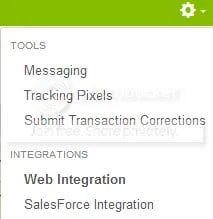
- From the Advertiser Home Page, choose Tools gear, Web Integration.
- In the Web Integration, Settings tab, enter the phone number to replace on your website.

- Click Update.
- Click “Get Code” tab to access your custom generated web integration code.
-
Place the web integration code on your website (every page where you want to display the promo number) in the footer just above the
</body>tag. This step only has to be done once.
Testing the code
- To test web integration inside the platform, from the Web Integration panel, click Integration Test. Select “Open Test”.

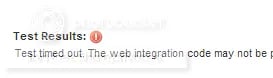
-
To test web integration outside the platform, in a browser enter the landing page URL, or other web integrated page’s URL, and append PPCPN=9999999999.
If the URL has a query string, use an “&” to append the PPCPN, for example:
http://www.invoca.com/corporate/landhere/?r=1&PPCPN=9999999999If the URL does not have a query string, use a “?” to append the PPCPN, for example:http://www.invoca.com?PPCPN=9999999999If the test is successful, the number or numbers on the page change to 999-999-9999. If test is unsuccessful, the number or numbers do not change to 999-999-9999. See Web Integration Troubleshooting below.
Web Integration Troubleshooting
- Check that the phone number is entered in the Web Integration, Settings tab and matches the phone number on your website.
- If you display other phone numbers in addition to the number entered in Web Integration, Settings tab, make sure you are using additional client side Web Integration settings to accommodate multiple phone numbers. See below for examples.
- Check for syntax errors on the page, for example, missing commas or brackets.
Web Integration Settings
Web Integration settings can be set on the server or the client side (browser side). As an example, the NumberToReplace field can be set on the platform(server side) and in the JavaScript function(client side). A large majority of advertisers only need to configure the settings on the platform or server side. Including Web Integration settings on the client side should only be done if the Web Integration’s behavior needs to be customized. The client side settings always takes precedence over the server side.Server Side Integration
All of the server side settings are defined in the Web Integration, Settings tab.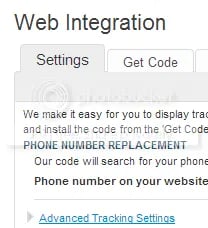
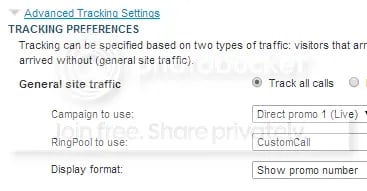
Client Side Integration & Parameters
The client side settings are listed in the table below. Most installations do not require any client side changes. To initialize the Web Integration code, pass the integration settings in a hash to the Invoca.advertiser_integration function.Required parameters: | | |
|---|---|---|
id | String | Unique Advertiser ID. (Auto Populated in Tools, Web Integration, Get Code tab) |
Optional parameters: | ||
|---|---|---|
numberToReplace | String | Default: Note: This field can be specified on the server side on the Web Integration, Settings tab. It is recommended to use this and not add this parameter to the Javascript. The phone number on the page to replace with an Invoca promo number. Prefix international numbers with ‘+’ and separate the country code with a space. Other punctuation is ignored but can be used for readability. The number is replaced in the same format as is used on the page. Example values: ‘805-555-5784’, ‘+1 8055555784’, ‘020 8905 1456’, or ‘+44 020 8905 1456’ |
numberSelector | String | Default: The selector of the HTML elements where you want phone number inserted. Prefix IDs with ‘#’ and classes with ‘.’ For example, ‘.promoNumber’ replaces the number in all HTML elements having class=”promoNumber”. |
campaignId | String | Default: Note: This option can be specified on the server side on the Web Integration, Settings tab (default campaign for general site traffic). It is recommended to use the server side settings and not add this parameter to the Javascript. Unique campaign ID. If you need separate settings per landing page, then this field is required. |
ringPoolId | String | Default: Note: This can be specified on the server side on the Web Integration, Settings tab (default RingPool for general site traffic). It is recommended to use the server side settings and not add this parameter to the Javascript. Unique RingPool ID. If you need separate settings per landing page, then this field is required. For general traffic coming to the site, the RingPool specified in Advanced Tracking Settings is used to allocate a number. If the RingPool is not specified, the campaign ID is used to find a valid RingPool. |
numberSeparator | String | Default: Character to separate phone digit groups. |
numberLeadingOne | Boolean | Default: If true, inserts a leading ‘1’ then the separator in front of the number. |
showSelector | String | Default: The selector of the HTML elements you want to set to visible (using jQuery.show) when a promo number is swapped out. Prefix IDs with ‘#’ and classes with ‘.’ . This is useful for having a span that says “call now:” which should only be displayed if a valid phone number is inserted. See also hideSelector. (The elements are not shown if Click to Call is being used and ctcUseButton is set to true.) |
hideSelector | String | Default: The selector of the HTML elements you want to have set to display:none (removed from the page visually). Prefix IDs with ‘#’ and classes with ‘.’ This is useful for hiding the image that has the default company phone number embedded in it, when a valid promo number is found. See also showSelector and notVisibleSelector. |
notVisibleSelector | String | Default: The selector of the HTML elements you want to have set to visibility:hidden (hide on page in place). Prefix IDs with ‘#’ and classes with ‘.’ This is useful for hiding an element when a valid promo number is found but keeping the page layout the same. See also hideSelector and showSelector. |
onLoadWithNumber | Function | Default: A callback function called after web integration has run and modified the DOM using the selectors specified in the parameters. Called with the following arguments: is_ctc boolean - true if CTC is enabled phone_number string - formatted phone number (empty if CTC is enabled and a promo number is not available). |
onLoadNoNumber | Function | Default: A callback function called after Web Integration runs and no modification is made. |
mobileClickToCall | Boolean | Default: When true, automatically wraps valid promo numbers in tel links when viewed on a mobile browser, so they are clickable and launch a dialer. Non-mobile browsers will get the default behavior of just a phone number. If your site already has dynamic behavior specified on the phone number DOM element, you may want to set this to false to prevent conflicts. |
networkParamName | String | Default: The query parameter name used for passing promo numbers through click-tracking URLs. (Configured within your main network, if available) |
ctcUseButton | Boolean | Default: Applicable when web integration is set to use the online click-to-call form. When true, modifies the elements specified by numberSelector to contain a “Call Me!” button (or ctcButtonContent if set), otherwise inserts the phone number (when available) and wires up a click handler on the element. A class of click_to_call_button is added to the element specified by numberSelector. You can add CSS styling to that class to customize the look to match your website. |
ctcButtonContent | String | Default: Applicable when Web Integration is using the online click-to-call form. HTML content to override the default online CTC call to action (button or hyperlink is recommended). |
debug | Boolean | Default: When true, debug information is printed to the console in browsers that support console.log() and console.error() Safari & Chrome using the Developer JavaScript Console Firefox with Firebug enabled IE8+ with Developer Tools enabled |
Client Settings (Advanced)
numberToReplace vs. numberSelector There are two ways for the Web Integration code to know where to insert a tracking phone number. Note that you should only use one or the other, not both.- The numberToReplace option, which is the easy to use option, looks for the advertiser’s phone number on the web page and replaces it with the affiliate or publisher tracking phone number(promo number).
- The numberSelector option, which is the robust option used for customizing the Web Integration’s behavior, looks for an HTML element that has the same ID or class name and replaces the entire element with the affiliate or publisher tracking phone number(promo number) or a click-to-call button. Click-to-call only works with this option.
Selector information
All “selector” parameters are a comma separated list of IDs or classes, where IDs are prefixed with a “#” and classes are prefixed with a “.” (similar to referencing a class or ID using jQuery or prototype). Only a single class or single ID per selector is supported, no other jQuery selector syntax is supported.-
Valid:
A single class:
.promoNumberA single ID:#numberA list of classes:.promoNumber, .mainNumber -
Not valid:
table > .promoNumber.promoNumber:firstspan#number
Simple Examples
Default example of replacing multiple phone numbers on a page, with no additional options specified: ( ‘YOUR_ID_HERE’ represents where the unique advertiser ID is inserted.)Advanced Examples
Example changing the phone number presentation using the NumberSelector option on the client side:<span class=”promoNumber”>INSERT THIRD PARTY CODE HERE</span>
Example using callbacks for custom behavior. (Note that adding tel links to numbers now happens automatically, so using a callback is no longer necessary!)
Capturing Additional Parameters with JavaScript
You can capture additional RingPool parameters through client-side JavaScript using the poolParams option. In the following example, the visitor’s landing page timestamp is set to the poolParam “landingTime”.Displaying Different Numbers on Other Pages
Typically a visitor is “cookied” at a domain level and therefore is served the same number as they visit various web-integrated pages on the same domain. Use the “cookieId” option to set a unique cookie on different pages of a website. This allows different numbers to be served to the same visitor, depending on the page they visit. This example demonstrates how to allocate a unique number for the same user on two different pages. Any page that uses cookieId: “A” displays one number, and any page that uses cookieId: “B” displays another. Note: The cookie names (e.g. A, B) can be a custom name of your choosing.Online Click-To-Call (CTC) Form Settings
When online CTC is enabled, the default behavior is for the phone number on the page to be replaced by a “Call now” button. When clicked, a lightbox window pops up over the page prompting the user to enter their phone number. The logo shown in the lightbox can be customized in the platform on the Customize Online Click-to-Call Form page accessed from Tools, Web Integration, Settings tab, Advanced Tracking Settings link. Example of customizing the “Call now” button when using online CTC.- On the server, you can have a list of RingPool / Campaign ID pairs, and associate each pair with a key. In the example below, the key is the referring page’s domain.
- Find the correct ID pairs for a given request, and make them available for the view template.
- Insert the ID pair into the web integration code using the template.
Elegantly Swap Phone Number with jQuery
By default, the Advertiser Web Integration code swaps a static phone number with a campaign number when a landing page loads. Occasionally, visitors may notice that the number changes. The following example shows how to hide the static number on a landing page, and only show the Promo Number after the code runs. Additionally, in the event that no promo number is available, the code displays the original static number. Directions: Updatevar PHONE_SELECTOR to be the selector wrapping the phone number to be replaced.
Update var FADE_SPEED to be the length of the fade in milliseconds.
In the HTML, wrap your phone numbers in a span tag with the class “phone-number”. <span class=”phone-number”>STATIC NUMBER HERE</span>.